
If you want to track your spending without paying for a budgeting app, a Google Sheets expense tracker is the most flexible free option available. You can use my free template and start logging today, or follow the step-by-step build guide below to create your own with dynamic monthly tabs and automatic category totals.
I use this exact setup to evaluate my own finances, track financial goals, and monitor monthly bills. The template handles all the math automatically.
Get the Free Expense Tracker Template
Skip the setup and start tracking your budget today.
Note: Clicking the link will prompt you to “Make a Copy” to your personal Google Drive. A Google account and internet connection are required for setup. Once copied, the sheet can be used offline.
Option 1: Use the Free Template
The template uses a two-tab system. Here is how each tab works once you have made your copy.
- Summary Tab: Your dashboard. Enter your starting balance at the top, then customize the category list (for example: Rent, Groceries, Dining Out, Subscriptions, Transport). The charts update automatically as you log transactions.
- Transactions Tab: Your logbook. Each row is one transaction. Enter the date, amount, description, and select a category from the dropdown menu.
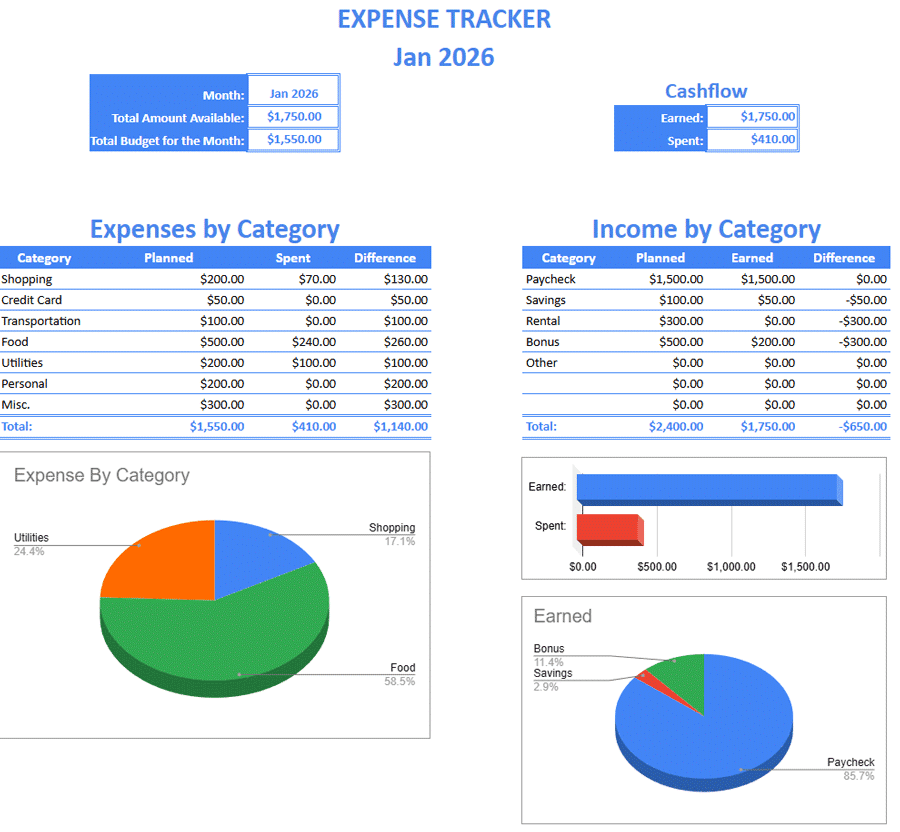
I keep my full category list on the Summary tab so there is only one place to update it. The dropdown on the Transactions tab pulls from that list automatically via data validation, which prevents typos from breaking your formulas.
For a broader financial picture, use this tracker alongside our free Google Sheets budget templates.
Option 2: Build Your Own from Scratch
If you want to understand how the formulas work and build a tracker tailored to your exact setup, follow this tutorial. The result is a dynamic tracker where monthly tabs feed into a master dashboard automatically, so you never have to rewrite a formula when a new month starts.
Step 1: Set Up Your Tabs
Create a new Google Sheet and set up two tabs:
- Rename Sheet1 to Expense / Budget Summary.
- Create a second sheet and rename it Jan 2026 (or whatever the current month is).
- Enter a few rows of sample data so you have something to test your formulas against.
Important: The naming convention of your monthly tabs matters. The formulas in Step 4 will reference these tab names directly, so “Jan 2026,” “Feb 2026,” and so on need to follow a consistent format.
Step 2: Build the Transactions Log
Go to your Jan 2026 tab and create these four columns:
- Date
- Amount (format the column as Currency)
- Description
- Category
Every transaction you log will be one row in this sheet. At the end of the month, you duplicate the tab, rename it “Feb 2026,” clear the data rows, and start fresh. Your Summary dashboard pulls from whichever month you specify, which is handled in Step 4.
Step 3: Build the Summary Dashboard
Go to your Expense / Budget Summary tab. Create two tables: one for Income by Category and one for Expenses by Category. This is the at-a-glance view you will check most often.
One setup tip worth doing now: create a dedicated cell (for example, C3) where you type the month you want to view, such as Jan 2026. Every formula on this dashboard will reference that single cell, so switching months requires changing only one value.
Your category list should also live on this tab. A clean approach is to put it in a column off to the side (for example, column H) so the dashboard stays readable. You will reference this list for data validation in Step 6.
Step 4: Add the Dynamic Formulas
This is the step where most people get stuck. The goal is to have the Summary dashboard pull data from “Jan 2026” this month and “Feb 2026” next month, without rewriting any formulas. The solution is the INDIRECT function.
Google Sheets cannot dynamically reference a tab name using a static formula. INDIRECT solves this by building the sheet reference as a text string at runtime, so the formula reads whatever tab name is currently in cell C3.
Formula for Total Cash Flow
To sum all values in Column J of your active monthly tab, enter this in your Summary cell:
=SUM(INDIRECT(TEXT($C$3,"mmm yyyy")&"!J3:J"))
| Component | What It Does |
|---|---|
$C$3 |
The month selector cell on your dashboard (for example, Jan 2026) |
TEXT($C$3,"mmm yyyy") |
Converts the date value in C3 to the text string “Jan 2026” |
&"!J3:J" |
Appends the sheet reference syntax, producing “Jan 2026!J3:J” |
INDIRECT(...) |
Tells Google Sheets to treat that text string as a real range reference |
SUM(...) |
Adds up all values in that column on the active monthly tab |
Formula for Category Spending
To calculate spending for a specific category (for example, “Groceries” in cell A11 of your dashboard), use this SUMIF formula:
=SUMIF(INDIRECT(TEXT($C$3,"mmm yyyy")&"!E3:E"),A11,INDIRECT(TEXT($C$3,"mmm yyyy")&"!D3:D"))
| Component | What It Does |
|---|---|
INDIRECT(..."!E3:E") |
Points to the Category column on the active monthly tab |
A11 |
The category label on your dashboard you want to match (for example, “Groceries”) |
INDIRECT(..."!D3:D") |
Points to the Amount column on the active monthly tab |
Copy this formula down for every category row on your dashboard. When you change C3 to “Feb 2026,” every formula instantly recalculates against the February tab.
Troubleshooting tip: If a formula returns an error after you add a new monthly tab, check that the tab name matches the text string produced by TEXT($C$3,"mmm yyyy") exactly. A single extra space will break the reference.
Step 5: Add Charts
Numbers are useful, but a pie chart makes overspending immediately visible.
- On your Summary tab, highlight your Category column and your Actual Spent column.
- Go to Insert > Chart.
- Select Pie Chart from the chart type dropdown.
- In the chart editor, confirm that Label is set to your Category column and Value is set to your Spent column.
Because the chart is built on your Summary tab data (which updates via INDIRECT), it will automatically reflect the correct month whenever you change C3.
Step 6: Add Data Validation Dropdowns
If you type “Food” in one row and “Groceries” in another, your SUMIF formulas will treat them as two different categories and undercount both. Data validation prevents this by restricting entries to your approved category list.
- Go to your monthly transactions tab.
- Highlight the Category column.
- Go to Data > Data Validation.
- Select List from a Range.
- Point it to the category list on your Summary tab.
Now every category entry is a dropdown selection, and your formulas will always match correctly. When you add or rename a category on the Summary tab, the dropdown updates automatically across all monthly tabs.
What Expense Categories Should You Track?
If you are not sure where to start, here is a practical starter list that covers most personal budgets:
- Housing: Rent or mortgage, renters/homeowners insurance, HOA fees
- Utilities: Electric, gas, water, internet, phone
- Groceries: Supermarket and food shopping (separate from dining out)
- Dining Out: Restaurants, cafes, takeout, delivery apps
- Transport: Gas, parking, public transit, rideshare, car insurance
- Subscriptions: Streaming, software, memberships, gym
- Health: Insurance premiums, copays, prescriptions, dental
- Personal Care: Haircuts, toiletries, clothing
- Entertainment: Events, hobbies, games
- Savings: Emergency fund contributions, investment transfers
- Miscellaneous: One-off purchases that don’t fit elsewhere
Keep your category list short enough to be meaningful. Eight to twelve categories is a workable range for most people. If you find yourself using “Miscellaneous” for more than 10% of your transactions, that is a signal to add a category.
Frequently Asked Questions
How do I add a new month to the tracker?
Right-click your most recent monthly tab and select “Duplicate.” Rename the copy to the new month (for example, “Feb 2026”). Clear all the transaction rows but leave the column headers. Then go to your Summary tab and update cell C3 to “Feb 2026.” All dashboard formulas will immediately pull from the new tab.
Can I share this tracker with a partner or spouse?
Yes. Click the Share button in the top right corner of Google Sheets and add your partner’s Google account with Editor access. Both of you can log transactions simultaneously. For shared finances, consider adding a “Person” column to the Transactions tab so you can filter or SUMIF by individual.
How do I track business versus personal expenses?
Add a “Tag” column to your Transactions tab with a dropdown containing “Personal” and “Business.” Use a SUMIF formula on your Summary tab to calculate total business expenses separately. This makes it straightforward to pull business totals at tax time without manually sorting through every transaction.
Can I connect my bank account to Google Sheets?
Google Sheets does not connect to bank accounts natively. The most practical workarounds are: downloading a CSV export from your bank and pasting it into your Transactions tab, or using a third-party tool like Tiller, which automates CSV imports via Google Apps Script. Manual entry takes five to ten minutes per week for most people and keeps you more aware of your spending.
How do I handle recurring expenses versus one-time purchases?
The simplest approach is to log all transactions the same way regardless of frequency, and let your category totals surface the pattern over time. If you want to flag recurring bills specifically, add a “Type” column with a dropdown for “Fixed,” “Variable,” and “One-Time.” You can then use SUMIF to compare your fixed monthly obligations against your discretionary spending.
How do I track mileage in Google Sheets?
Mileage is usually cleaner in a dedicated tab rather than mixed into your expense categories. Our free mileage log template can be linked to this workbook using the IMPORTRANGE function if you want mileage reimbursement totals to feed into your Summary dashboard.
Wrapping Up
A Google Sheets expense tracker gives you full control over your financial data without a subscription, and the formulas above scale as your needs grow. The template is the fastest way to start. The DIY build gives you a tracker you understand completely and can customize without limits.
Either way, the most important habit is consistency. Log transactions once a week and your monthly totals will take care of themselves.